TrialGrid Version 86 - Smarter Agents, Custom Object Auditing and Richer Test Case Diagnostics
Version 86 is a substantial release that pushes forward on several fronts at once: our AI Agents get meaningfully more capable, Custom Objects and Test Cases gain full audit-and-revert history, and the testing and diagnostics tools learn to explain themselves more clearly. There's a lot here, so let's walk through the highlights.
For more information see the release notes for Version 86.
AI Agents
Our AI Agents continue to grow from helpers that describe problems into tools that build study artifacts for you. The Edit Check Agent and the Custom Function Agent can now both work from specifications: you define what you want using Property Definitions on an Edit Check or a Custom Object, and the agent generates the CQL logic, actions, or custom function to implement it. This means you can capture an intention as structured metadata and let the agent turn it into a working build object.
The Test Case Creator agent can now create Edit Checks at the same time as it creates Test Cases, and the Medidata Test Case Agent can draw on Edit Check custom properties. On the Veeva side, the Test Case agent now adds Add Event steps where they are needed and supplies a sensible default when saving a Test Case.
The Field Visibility and Progressive Display agents are now driven directly from the Forms list - select the forms you want analyzed and run the agent on just those, or run it across all forms if nothing is selected. Both agents now stream their results progressively, showing analysis for each form as it completes rather than making you wait for the whole batch. The Progressive Display Agent can also offer a fix, setting the Controlling Item and Controlling Item Values on items that are missing progressive display configuration.
We've also sharpened existing agents. The Custom Function Review agent was producing too many low-value findings, so it now concentrates on genuine errors, and the old 'Review' column has been removed from the Custom Function list in favor of action hooks that can apply Labels or other actions to reviewed functions. The Specification Review agent's object discovery has been improved, and agents can now locate Folders by both OID and Name.
Custom Objects and Custom Properties
Custom Properties gain two new data types in this release. Boolean properties render as a simple TRUE/FALSE dropdown, and Email properties validate that the entered value is a well-formed email address. Property definition listings now include a Data Type column with a matching filter, so you can quickly find every property of a given type, and a new Convert Values utility lets you bulk-replace text property values across a draft.
The child grid display for Custom Objects has been improved with ordinal change controls, sorting and filtering, and when you copy Custom Objects the list now shows any properties marked 'display in list'.
Custom Objects are now fully audited. Changes appear on the Activities tab where they can be reviewed, and reverted via the 'Revert' button. When reverting, you are no longer limited to an all-or-nothing rollback - checkboxes let you choose exactly which individual properties to revert. This same audited-change-and-revert capability now extends to Veeva core objects, matching the behavior previously available only for user-managed custom objects.
Automated Testing
Running a test set is now faster when nothing needs to change: if all settings are already configured you can click 'Run' to start immediately, and a 'Change Settings' button is there when you do need the wizard. Test Cases can be opened in a new tab from the list, their changes are now tracked on the Activities tab and can be reverted, and Test Case Templates now show only step-level validation errors rather than confusing structural warnings about missing Feature or Scenario declarations.
We've put a lot of work into making test results clearer and easier to act on. The View tab now resolves internal identifiers to human-readable names, showing event labels for 'see events' steps and the Matrix Name for Add Event steps, and the 'Link to event' in run results uses a stable URL pointing at the review tab. Field visibility steps and 'see form in event' steps now capture screenshots as evidence.
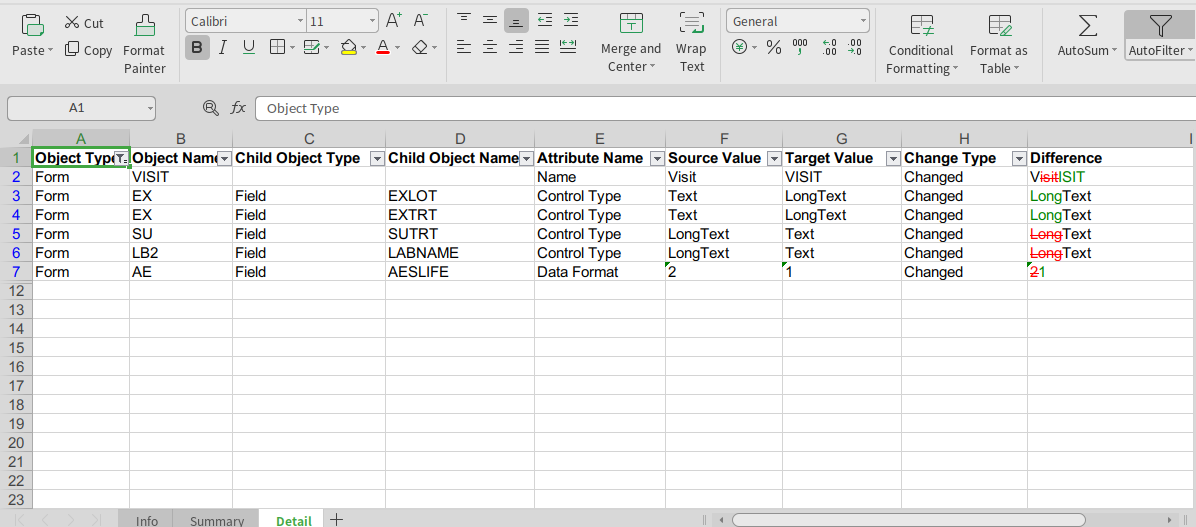
Query verification got a particularly large upgrade. When a query step finds a near-match with whitespace or case differences, the result highlights exactly where the expected and actual text diverge using color-coded markup. Run results can show a diff against the closest open query when there is no exact match, display the HTML tags in the query so they are visible, and offer a text-only diff view that ignores markup. Best of all, when a query step fails on a message mismatch you can update the expected text directly from the run results - whether that text lives in the Test Case, the Edit Check, or a Veeva Rule.
The Test Case Advisor is smarter about AI-generated scenarios. A new 'Use AI for Custom Functions' option - with an organization-level default - turns on AI generation of test cases for edit checks with custom functions. When generating those scenarios the Advisor can produce unknown date values for fields that support them, can include the marking group from the edit check action in query verification, and now generates tests for both the first and second log records while making each scenario self-contained rather than relying on values carried over from earlier steps.
Veeva Testing
Veeva test runs are cleaner and more informative. The Vault service announcement banner is removed before screenshots are taken, 'has value' and 'does not have value' steps highlight the verified field value in green for a pass and red for a fail, and each run now records the casebook version and build number. The editor helps you build correct steps too: 'see value' helpers support partial datapoint references, numeric values are validated against field definitions (warning, for example, when a decimal is entered into an Integer field), and you'll see a warning if an 'add event' step references an event group that is not Unscheduled, since only Unscheduled events can be added in the Veeva EDC UI.
Diagnostics
Diagnostics in this release are more configurable, clearer about their findings, and easier to act on. Several diagnostics now let you tune what they check — excluding fields restricted to particular EDC Roles, targeting multiple Marking Groups, or adjusting thresholds to suit your project — and the role and marking-group selectors gain Select All and Deselect All controls. Findings are more transparent too, spelling out exactly what's wrong rather than just flagging it, and a new diagnostic spots inconsistent field help text and offers a one-click fix. We've also brought several Veeva diagnostics up to par with their Rave equivalents, giving them the same fix and autofix support.
Document Templates
AI Summary document templates are a new kind of template that turn your study data into narrative. You build a template that renders context data into an LLM prompt; that prompt is sent to the AI for summarization, and the response is saved as a text document - giving you automatically generated written summaries driven by the data in your build.
Study Build, Veeva and Rave
A few build-side improvements round out the release. The Form editor no longer changes a field's data format when you select or change its data dictionary, which removes a long-standing surprise. Veeva Object Definitions for Events, Forms, Item Groups, Items and Codelist entries now carry ordinals, and when you import an SDS spreadsheet the implicit worksheet ordering is preserved as those ordinals. Standard Rules are now editable in Veeva Library drafts, and when uploading a draft to Rave you can choose to merge it with the existing draft rather than replacing it.
This post was auto-generated by a LLM.