
Articles tagged with 'diagnostics'

Faster Rave Edit Check Building and Diagnostic Fixes

Summer is usually a quiet time in our industry with people taking vacations but at TrialGrid we're busier than ever working with our clients to get the most from Medidata Rave and the TrialGrid application.

Medidata Webinar / Fix-All Diagnostics

The good news is we are continuing to make improvements and release new features. This month, in a joint Webinar with Medidata, we presented our Diagnostic "Fix All" functionality. This is particularly important to Medidata Rave customers as they adopt Rave 2018.1.0 or above. In these new versions of Rave, Medidata has taken a best practice (always set RecordPosition=0 for Standard Fields) and made it a requirement with the result that many ongoing Rave studies will need to be updated.

Long-term this change will be a great benefit to Rave users because not adhering to this best practice can cause edit checks to not work as expected - but in the short term it will be extra work. We know of one group that spent two
days of effort updating a single study. In the webinar we showcased our Diagnostic for RecordPosition and its automatic "Fix All" capability. Using this Diagnostic could have resolved this issue in 10 minutes - a saving of 15 hours and 50 minutes or 96% less effort.

Updates to CQL

Two years ago we introduced CQL, the Clinical Query Language, an alternative way of specifying Edit Checks. Rave Architect provides two ways of authoring Edit Checks: a point-and-click Edit Check builder and the powerful (but cryptic) QuickEdit text format. Both are based on postfix notation which can be difficult to learn. Here's a simple mathematical expression in postfix format:

2 2 + 4 =

CQL provides a more familiar infix notation:

2 + 2 = 4

Last week we upgraded our Edit Check editor with a new version of CQL and even better auto-complete helpers. This makes writing Edit Checks even faster.

Here's me starting an edit check. Notice how the editor offers me a listing of Folders or the Folder wildcard:
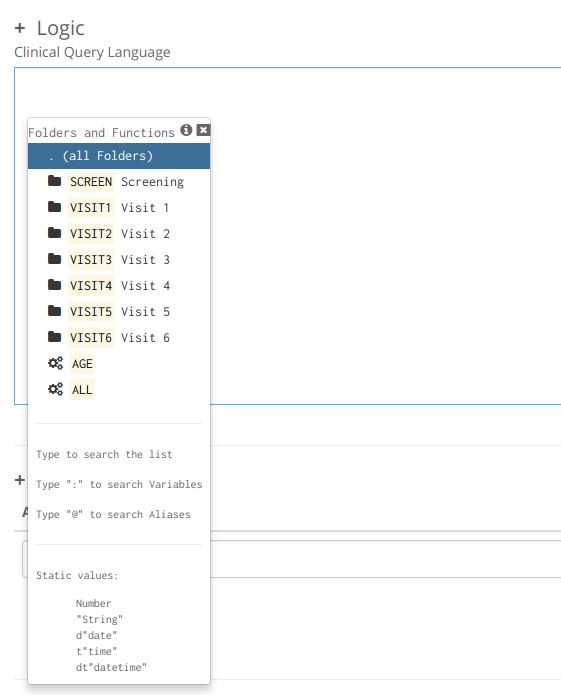
Folder Wildcard

I choose the wildcard option (any folder) and now I'm choosing a Form:
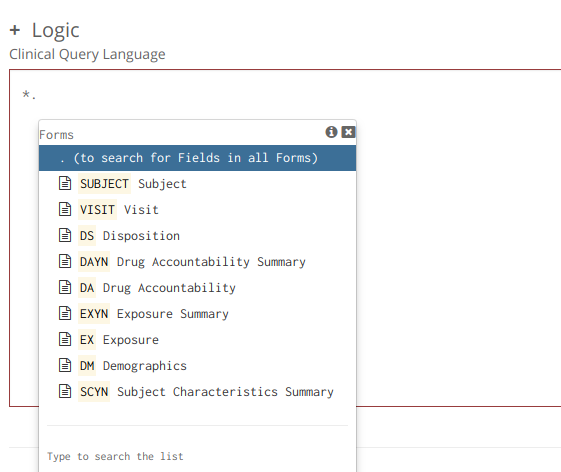
Form Choice

I choose the AE form and now I'm choosing the Field:
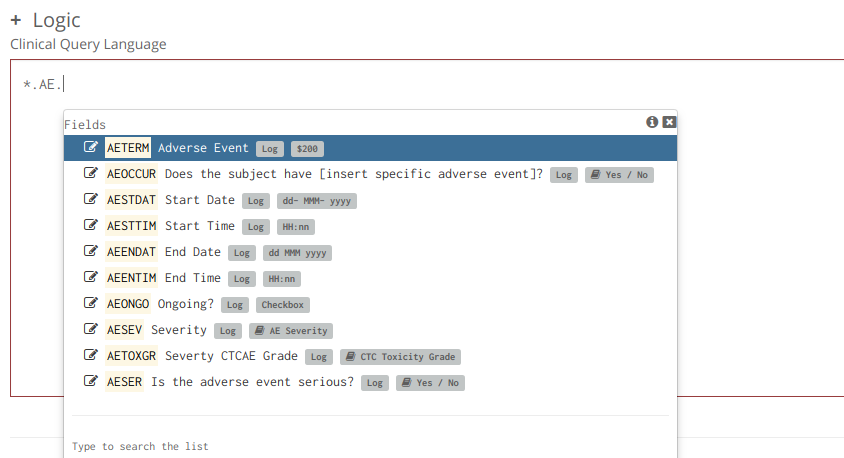
Field Choice

Notice that TrialGrid is giving you much more here than just the Field OID that Rave requires for an Edit Check. We're also seeing the Field Label, whether it is a log Field, it's data type and any associated Data Dictionary. This extra context makes it much easier to select the correct Field without having to look up an annotate or have the Form editor open.

If I select a Field which has an associated dictionary and I ask for the CodedValue then typing a # gives me a listing of all the possible values from that Dictionary:
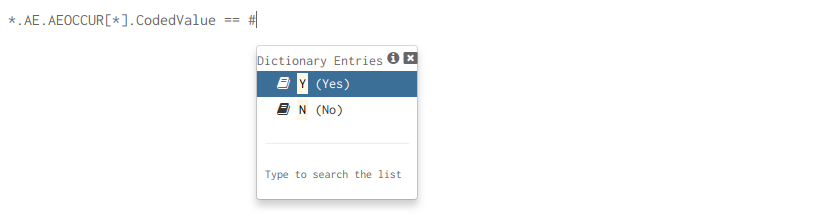
Dictionary Value

In each of these helper listings, typing a few more characters will filter the list of choices further. And this brings me to possibly my favorite feature of this upgraded editor, the Field search.

Field Search

Let's say you have the specification for a simple Edit Check:

AE Start Date cannot be later than AE End Date

You have to translate that into something you can create as an Edit Check:

AE Folder, AE Form, AESTDAT > AE Folder, AE Form, AEENDAT

Which means that you have to know the OID of the AE Folder and the AE Form and the Field OIDs for these Fields. In the new CQL editor you can simply type:

..End

To see a listing of all the Fields which contain (in their Question text or OID) the word "End":
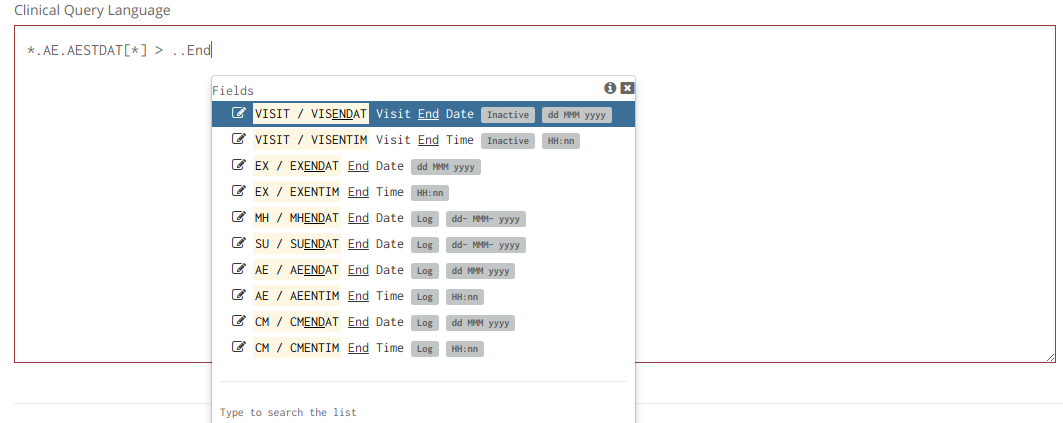
Search

Writing Edit Checks with CQL is fast, really fast but how does it compare to the Rave Edit Check point-and-click builder and to QuickEdit?

CQL Point And Click QuickEdit*
Style Infix Postfix Postfix
Speed Fast Slow Fast
Select OIDs Yes Yes No
Field Search Yes No No
Dictionary Search Yes No No
Field Context Yes No No
Auto set RecordPosition for standard Fields Yes No No

*Note that TrialGrid shows QuickEdit and CQL side-by-side and editing in one automatically updates the other so if you're productive with QuickEdit those skills are directly transferable to TrialGrid.

Medidata Rave is the market leading EDC system. The TrialGrid application is designed to help Study Builders make the most of Medidata Rave by speeding study development, managing library compliance and automating quality checks. If you want to see what TrialGrid can do for your team, Contact us

Upgrading to Rave 2018.1

One of the changes in the next Medidata Rave release, Rave 2018.1.0, is that standard fields in Edit Checks must have a Record Position of 0. This has long been a recommended best practice but up till now has not been required. Rave will now check that the Record Position is correct when saving an edit check in Architect, when uploading an Architect Loader spreadsheet and when publishing a Draft. If you try to publish a Draft with invalid Record Positions you'll see this error message:

Publish error

There is a good reason for enforcing this rule - it means that there will be no confusion between standard fields and log fields when executing the Edit Check. But if you have existing studies or libraries it may take hours of work for each Draft to locate and update Edit Checks. Unless you're using TrialGrid!

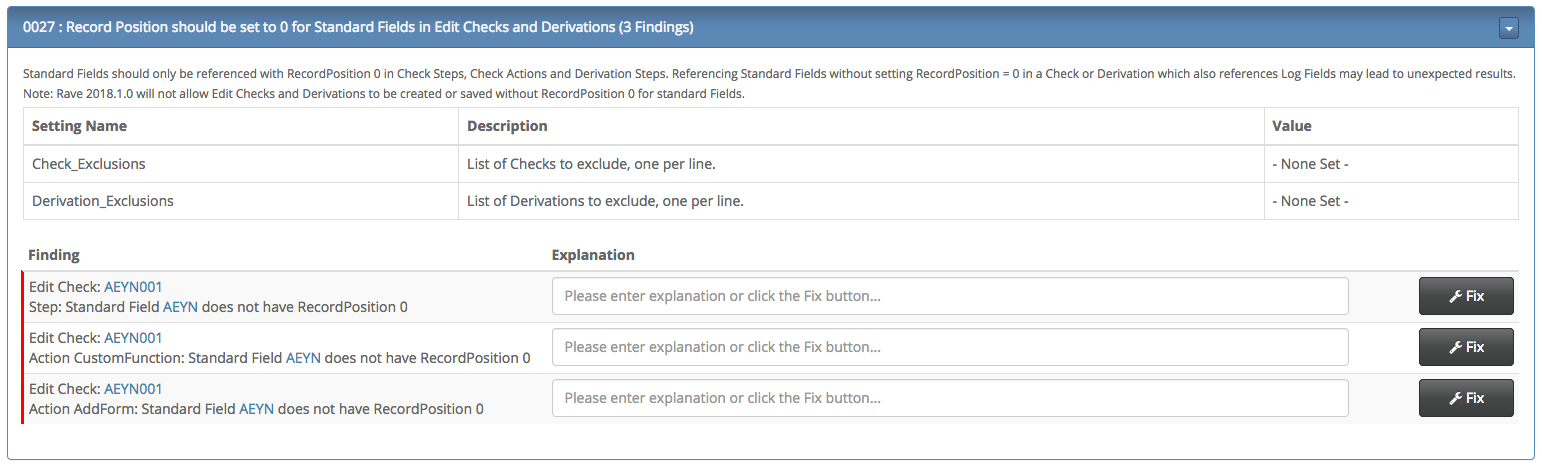
TrialGrid's Diagnostic 0027 analyses all Edit Checks and Derivations, quickly showing you which ones need to be updated:

Diagnostic 0027

and then updating them is as simple as clicking the 'Fix' button. In minutes you can have reviewed and corrected them all!

Diagnostic 0027 is one of the 79 Diagnostics available now to all existing TrialGrid users. We have Diagnostics to help with other upcoming changes in Rave 2018.1.0 and with upgrading to RaveX. As and when Medidata introduce new features and enhancements in Rave Architect, we ensure that TrialGrid is up to date and compatible with the latest changes, and look for ways we can help with upgrades.

Contact us if you would like a demo or to know more.

Unicode

If you haven't heard of Unicode you have certainly seen it. You are seeing it now since Unicode is the standard for the encoding of characters viewable in Web Browsers and on computers in general. As of this writing, version 10 of the standard includes more then 136,000 characters from multiple writing systems and Medidata Rave supports the Unicode standard both for study designs and for data collection. So what is the problem?

Actually, there is no problem so long as you know what characters from the Unicode standard are being used in your study, where they are and how they display and appear in outputs.

Unicode in Study Design

If you are building your study in Japanese or localizing it to Russian, Armenian or Greek then having the full set of Unicode characters to use is vital. For studies in English you may want to stick to the set of 128 characters known as ASCII (a-Z, 0-9 and symbols). But sometimes you can be surprised by characters that aren՚t what you think they are…

Did you spot those alternative characters hiding in the last sentence?

characters that aren՚t what you think they are…

vs:

characters that aren't what you think they are...

Still can't see it? Hint: It's the ՚ and the … The differences are (or at least, may be) subtle on the screen but when we render them in a Rave PDF they appear quite different:

Apostrophe and Ellipsis

It is very hard for the human eye to distinguish between these characters the way they are rendered in Browsers but they are different characters and the font that Rave uses to display characters won't have a way to render all 135,000 possible characters so it is best (in English studies at least) to stick to characters that appear in the limited ASCII set of characters that all fonts cover well.

Be especially wary of text that is cut and pasted from web pages, Word and Excel or from PDF documents. It is very tempting to copy verbatim from a Protocol document but word processors use all kinds of character variants to make writing look better on the screen or in print. You can't even trust the spaces in these documents because Unicode defines at least 20 different "empty" space characters of different widths including one that has no width at all (i.e. it is invisible!)

Tip: TrialGrid Diagnostic 70 will identify and highlight non-ASCII characters, even invisible ones

Unicode in Study Data

If unexpected characters in study design can cause strange PDF outputs, unexpected or unwanted characters in the clinical data can be real poison. A study that collects data in the English language might expect that all the text data in the study is in ASCII. However, Rave will accept data input to text fields of any Unicode character so the same problems of cut & pasted content can occur. Rave is 100% Unicode compatible so it will happily take, store and output any Unicode content but SAS and other analysis programs may have to be set to accept non-ASCII content.

In English studies you want to identify non-ASCII content at the point of entry. This can only be done with a Custom Function that looks at the content of a text field and determines if any of the characters are outside the ASCII range. A quick search of the web will throw up simple code which will return true if it finds a non-ASCII character in the input string:

 1
 2
 3
 4
 5
 6
 7
 8
 9
10
11
    //Take string from datapoint.Data or datapoint.StandardValue
    string s = "characters that aren՚t what you think they are…";  

    foreach (char c in s)
    { 
        if (((int)c) > 127) 
        { 
            return true; 
        } 
    } 
    return false;

Tip: TrialGrid contains a CQL extension that makes this as easy as using FieldName.IsNotAscii in an Edit Check.

Summary

Rave handles Unicode really well and web browsers are very good at displaying a wide range of Unicode characters but not all characters can be displayed by all systems so be careful what you put into your study design and what you collect in your study data. Being able to cut and paste text between systems is great for productivity but can have unintended consequences.
